
How to Create App Store Screenshots Without a Designer
A practical workflow for turning raw app screens into polished App Store screenshots without hiring a designer or opening a complex design tool.
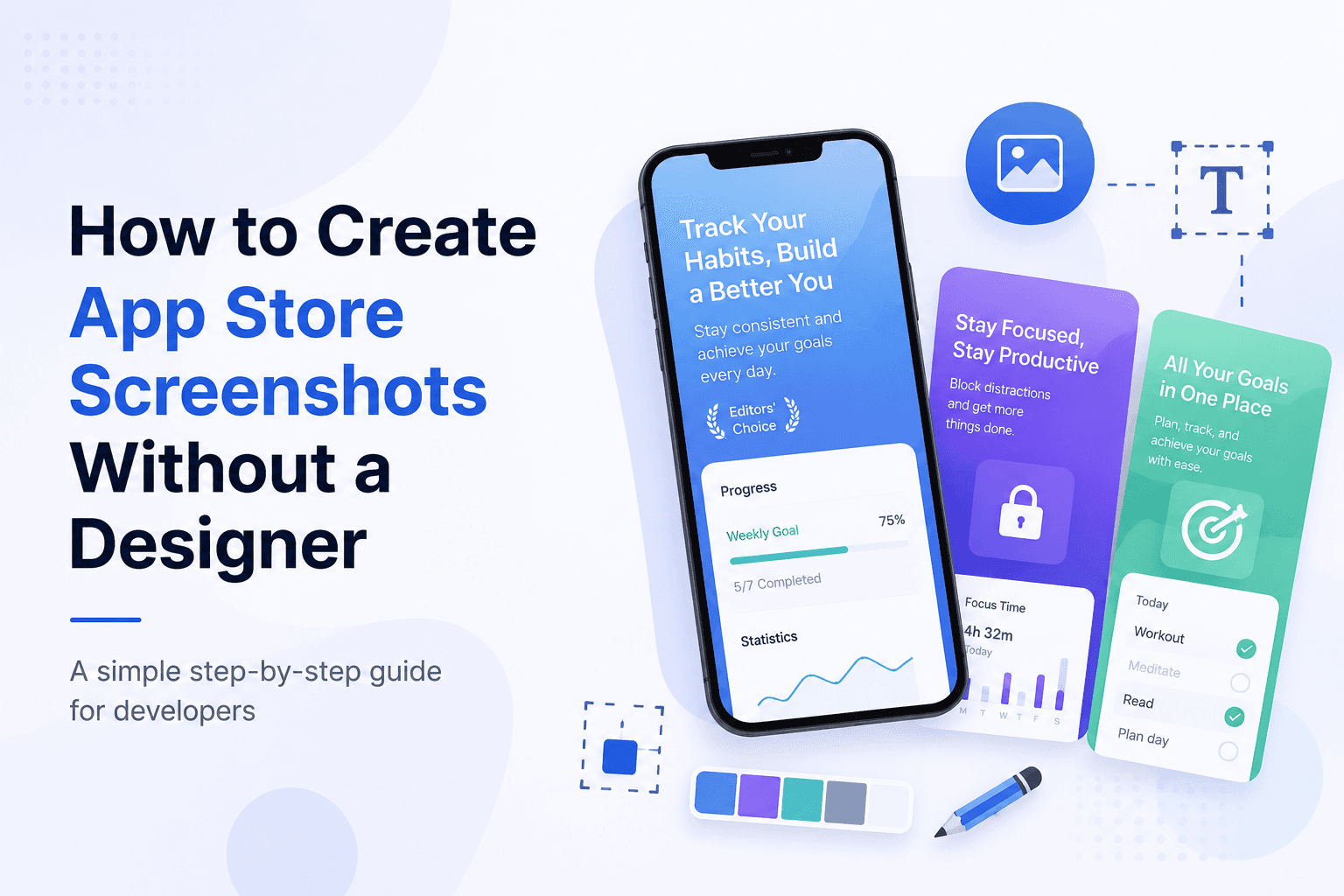
You do not need a design team to ship App Store screenshots that look professional. What you need is a clear story, the right device frame, readable captions, and a consistent visual system across every screenshot.
Start with the story, not the template
The biggest mistake founders make is opening a design tool before deciding what the screenshots need to say. Your first screenshot should answer one question: why should someone care about this app in three seconds?
Write one benefit for each screenshot before designing anything. For example: track expenses faster, plan workouts without spreadsheets, remember every client follow-up, or learn from top books in minutes. Once the message is clear, the layout becomes much easier.
Use the screenshots that show the product at its best
Do not use login screens, empty dashboards, loading states, or settings pages. Capture screens where the app is already useful. If your app needs sample data to look alive, add realistic data before taking screenshots.
A strong set usually follows this sequence: main promise, core workflow, standout feature, trust or proof, and a final reason to download. This makes the screenshots feel like a product tour instead of random UI images.
Keep captions short and readable
Most people scan screenshots on a small phone screen. Long captions get ignored. Use direct phrases like Create weekly meal plans, Read smarter every day, or Track every habit in one place.
Use one caption per screenshot, large type, strong contrast, and enough spacing from the device frame. If the screenshot already has heavy UI, put the caption above it or inside a calm background area.
Use one visual system across the whole set
Professional screenshot sets look consistent. That does not mean every slide should be identical. It means the same typography, colors, device treatment, and spacing rules should repeat across the set.
Pick one background family, one caption style, and one device frame style. Then vary the layout slightly from slide to slide so the set feels intentional without becoming repetitive.
Export the right sizes
Apple requires screenshots for specific device sizes. For many iPhone apps, the 6.7 inch size is the most important starting point. If your app supports iPad, prepare iPad screenshots too.
Screenza handles the canvas, device frame, text, and export flow in one place, so you can create the screenshots without manually resizing artboards or rebuilding every screen from scratch.
Key takeaways
- Plan the five screenshot messages before designing.
- Use real product screens with realistic data.
- Keep captions short, large, and benefit-led.
- Repeat one visual system across the set.
- Export store-ready dimensions instead of resizing manually.
Build faster
Create your next screenshot set in Screenza.
Use a template, replace the screens, edit the copy, and export polished App Store or Google Play screenshots without a design file.